Interface Overview
This page describes each region of the Diffract interface. Understanding where things live makes the rest of the documentation easier to follow.
Tip
Most options in the comparison options bar are per-tab - they do not affect other open comparisons.
Welcome Screen
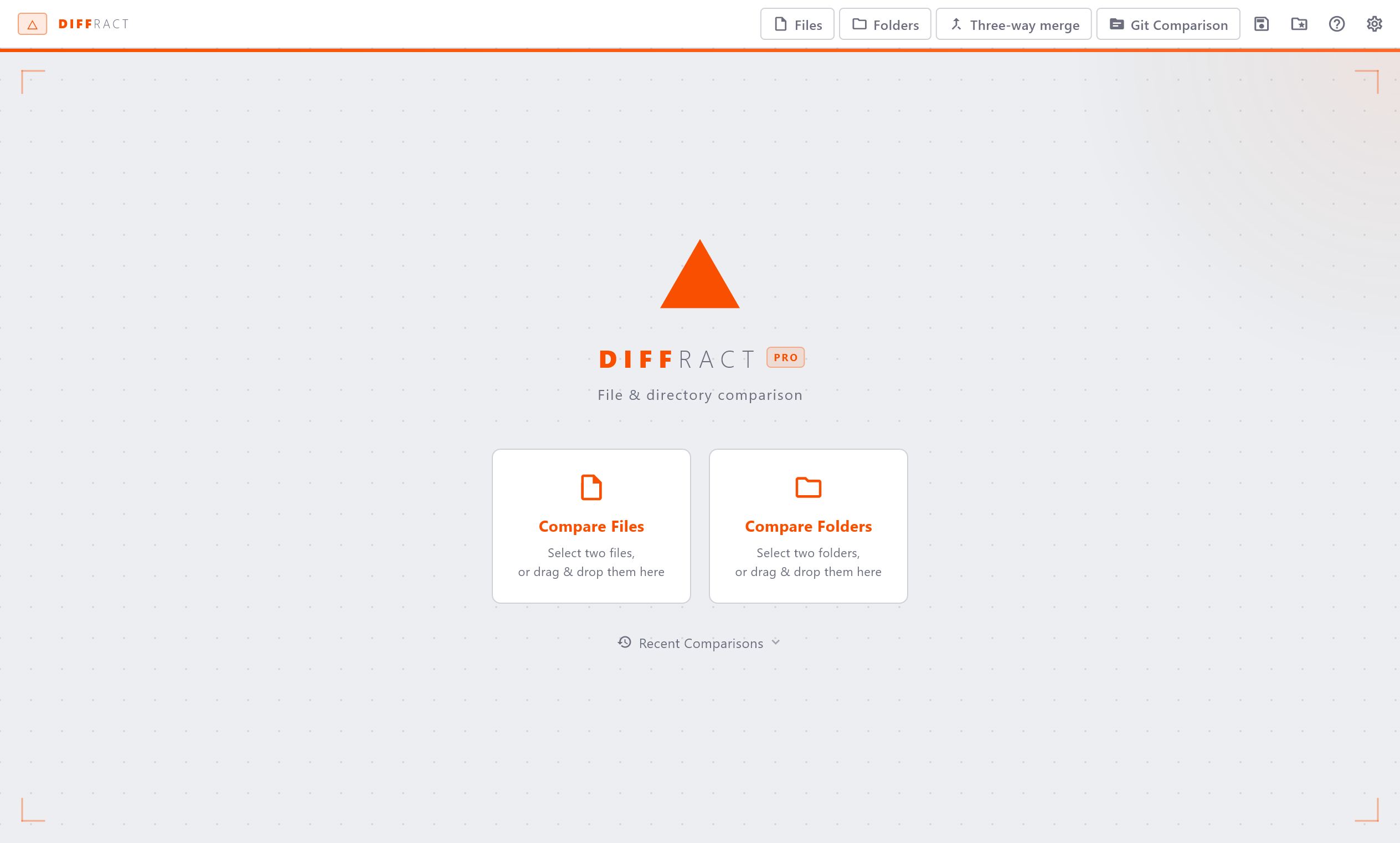
When no comparison is open, Diffract shows the welcome screen. Its center holds an inline setup with a Left and Right input: type or paste a path or URL into each, or use the browse icon to pick a file or folder, then click Compare. A Recent button below expands your recent comparisons. You can also drag and drop files anywhere on this screen.
Title Bar
The title bar spans the top of the window and displays the app name. The Settings gear icon sits on the right side of the title bar. Click it to open the Settings panel.
Tab Bar
The tab bar runs below the title bar. Each open comparison occupies one tab. Tabs show a short label derived from the file or directory names.
- The + button on the right opens a new empty tab.
- The × button on a tab closes that comparison.
- A small dot indicator appears on a tab when one or both sides have unsaved changes in the virtual buffer.
- A ≡ symbol appears on a tab when the two sides are identical.
Path Bar
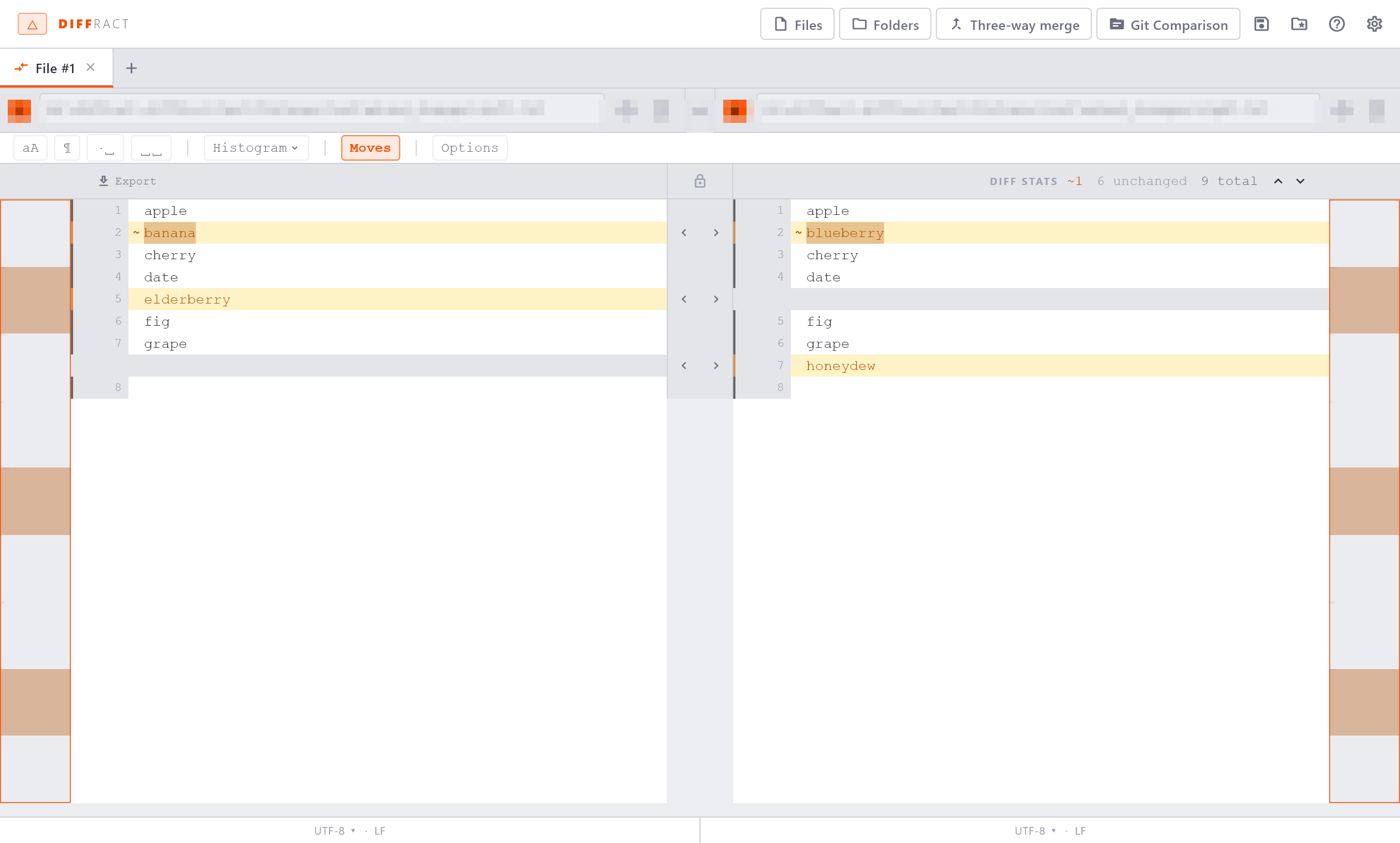
Each side of the comparison has its own path bar at the top of the panel.
- Type or paste a path directly into the text field and press Enter to load it.
- Paste an
http(s)://URL to load a remote file; the folder icon becomes a Fetch button. See Remote Comparison Pro. - Click the folder icon on the right to open the native OS file picker.
- A small dot appears next to the path when that side has unsaved virtual content (edits that have not yet been written to disk).

Comparison Options Bar
The comparison options bar sits below the path bars and spans the full width of both panels. It contains:
- Four ignore toggles: aA (case), ¶ (line endings), ·⎵ (trailing whitespace), ⎵⎵ (all whitespace). Click any toggle to activate or deactivate it. Active toggles are highlighted.
- The algorithm selector: Myers, Patience, or Histogram. The selected algorithm controls how Diffract aligns lines when computing which parts changed.
- A Moves toggle that enables or disables moved-block detection.
Changes to any of these controls take effect immediately and re-run the comparison.

Stats Bar
The stats bar sits above the comparison panels. It shows a summary of the current comparison result:
The ⇕N moved chip appears only when moved blocks are detected. The stats bar also contains the navigation buttons (▲/▼ for jumping between changes) and, when unchanged sections exist, an Expand all / Collapse all button.
Use it to get a quick sense of the scale of changes before navigating through them.
Comparison Panels
The two main panels - the left side and the right side - display the file content. Each panel has:
- A line-number gutter on the inner edge.
- Changed lines highlighted in amber.
- Word-level highlights on modified lines showing exactly which tokens changed.
- A narrow minimap strip on the outer edge (can be hidden in Settings).
Center Gutter
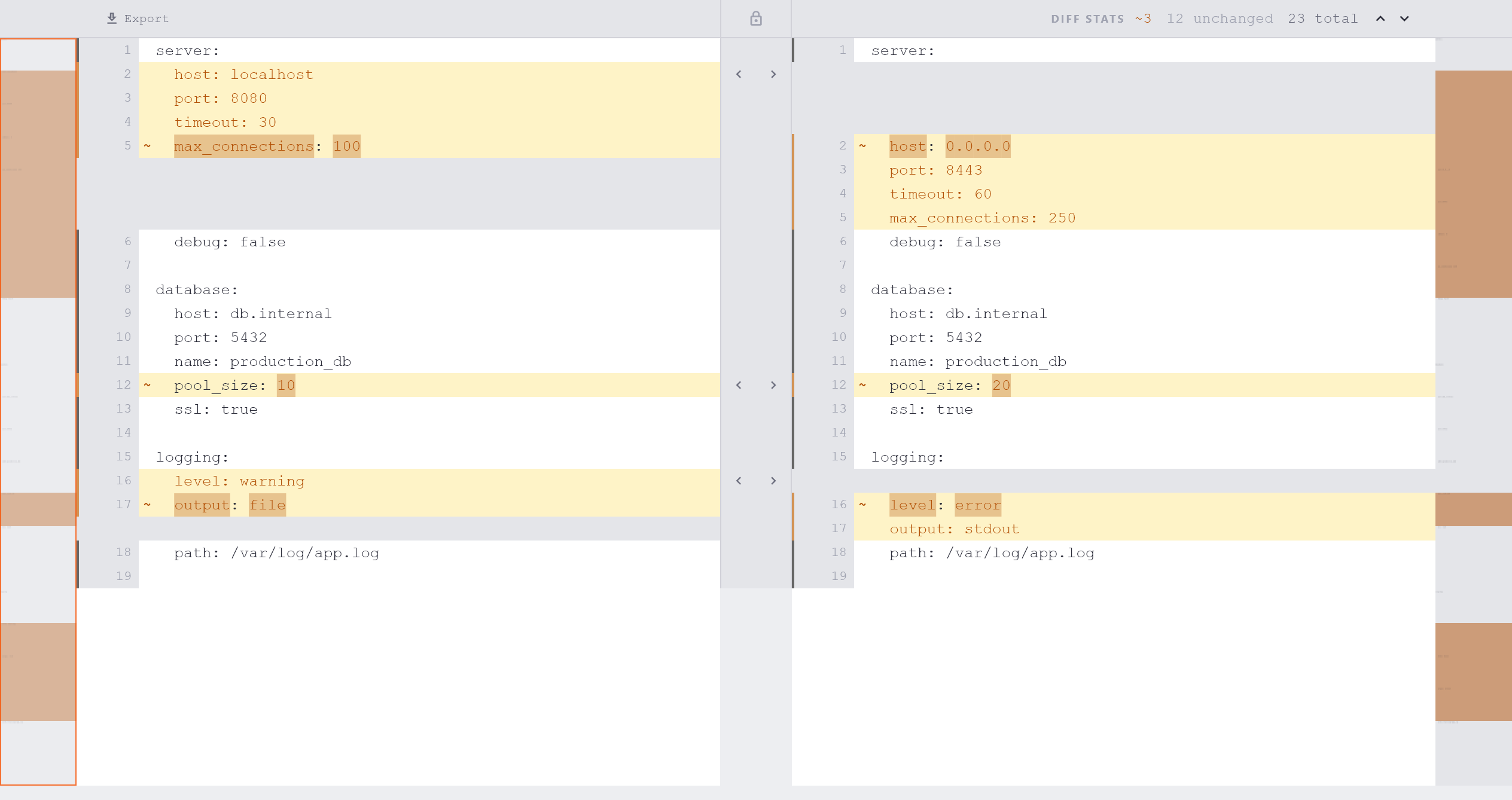
The center gutter is the narrow strip between the two panels. It shows interactive controls for applying changes between sides:
- At the start of each changed block, a ◁ button copies the change from the right side to the left side and a ▷ button copies it from the left side to the right side.
- When a single line is selected, a single-line apply button appears instead.
Minimap
A minimap strip runs along the outer edge of each panel. It shows a scaled-down view of the entire file, so you can see the overall distribution of changes without scrolling. The viewport rectangle within the minimap reflects the currently visible portion.
To show or hide the minimap, go to Settings → Appearance → Show minimap.
Scrollbar
A scrollbar is always visible on the right edge of the right-hand panel. Both panels share a synchronised scroll position - scrolling one panel scrolls both. Dragging the scrollbar moves both sides together.
Encoding Bar
The encoding bar runs along the bottom of the comparison view, below the panels. It shows the detected encoding (for example, UTF-8 or Latin-1) and the line-ending style (LF, CRLF, or Mixed) for each side. Click the encoding label to override it with a different encoding.
The encoding bar only appears when at least one side is a text file.
See Encoding & Line Endings for details.