Your First Comparison
This page walks through opening two files and reading the result.
1. Open the app
When Diffract launches with no previous session, it shows the welcome screen.
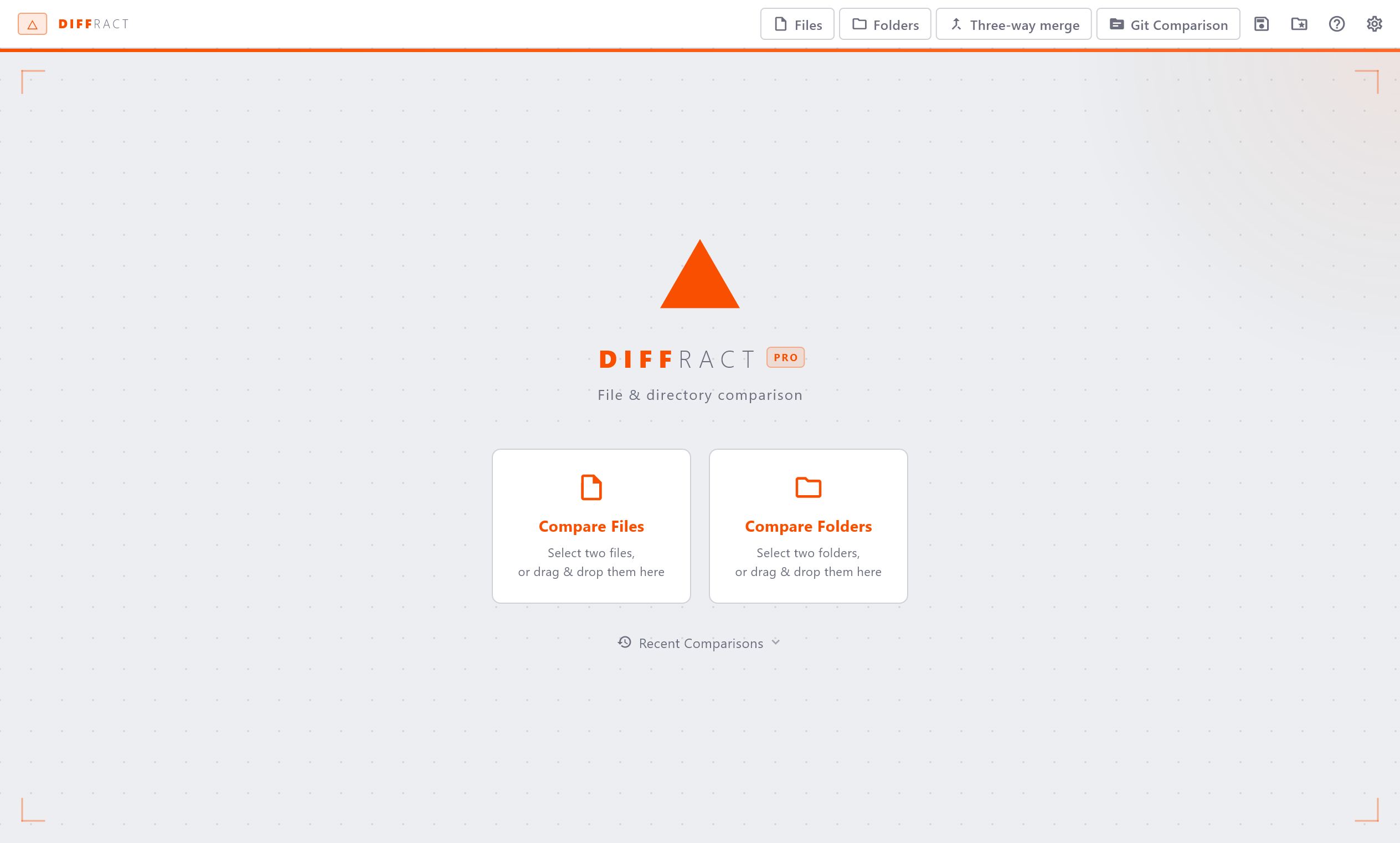
2. Choose what to compare
The welcome screen has a Left and Right input. For each side you can:
- Type or paste a file or folder path (or an
http(s)://URL - see Remote Comparison). - Click the browse icon to choose a file or folder.
Click Compare to open the comparison.
Alternatively, drag two files from your file manager and drop them onto the welcome screen - Diffract loads both sides at once. You can also click the Files or Folders buttons at the top to select the files or folders you want to compare.
Tip
Drop two files at once to load both sides simultaneously. Drag the left file to the left panel and the right file to the right panel, or drop both together anywhere on the welcome screen.
3. Adjust the paths
Inside an open comparison, each panel has a path bar at the top. You can:
- Type or paste a file path directly into the path bar and press Enter.
- Click the folder icon on the right side of the path bar to open the native file picker.
Once both paths are set, the comparison loads automatically.
4. Read the comparison
Stats bar
Directly above the panels, the stats bar shows a summary of the comparison:
- ~N - number of changed lines
- N unchanged - lines identical on both sides
- N total - total line count
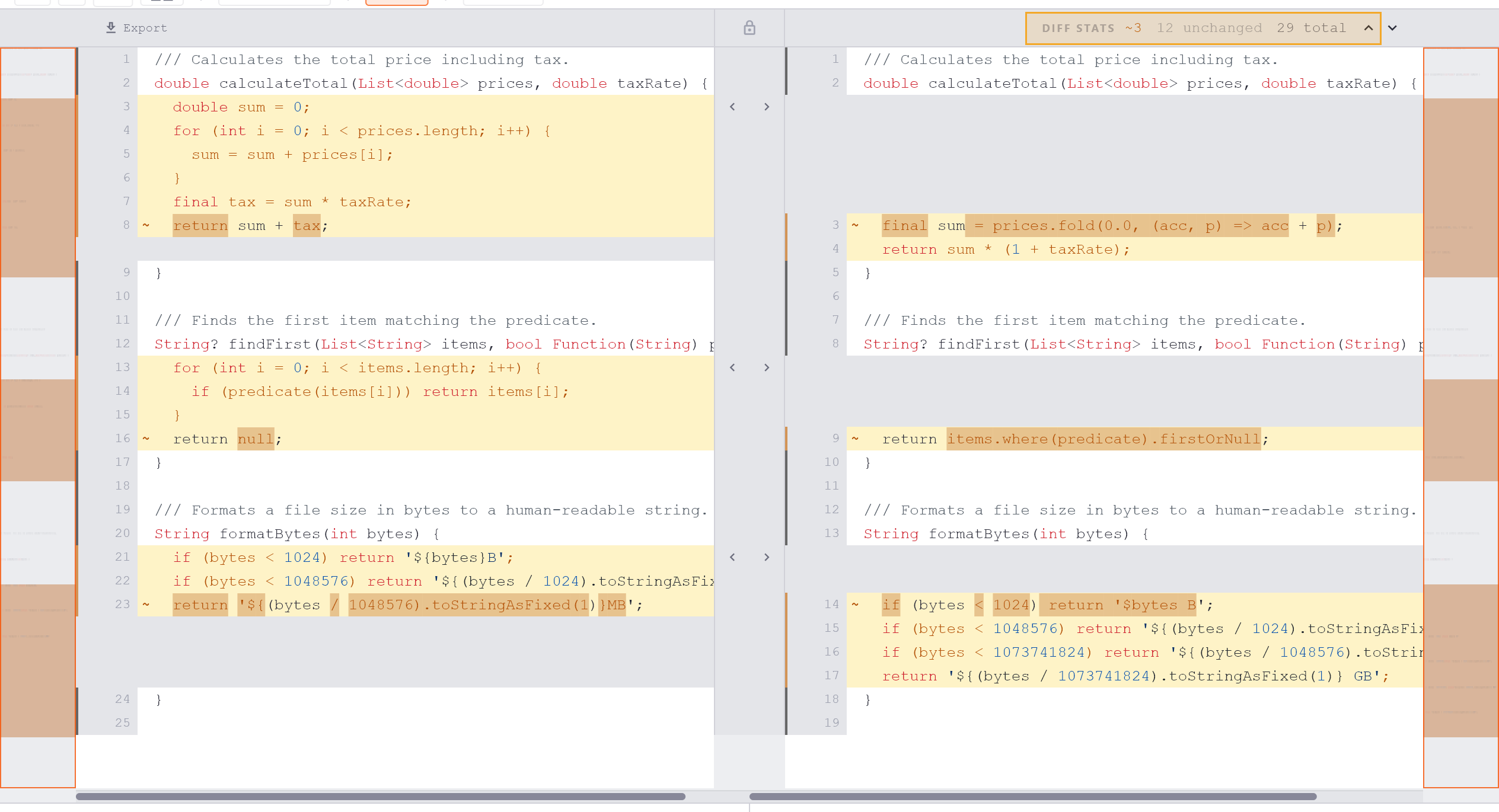
Changed lines
Lines that differ between the two files are highlighted in amber/yellow. This colour applies to added, removed, and modified lines alike. Unchanged lines have a white background.
Each changed line shows its line number in the gutter on the left. Line numbers are shown for both sides independently, so a block of inserted lines on the right side will show no line number on the left.
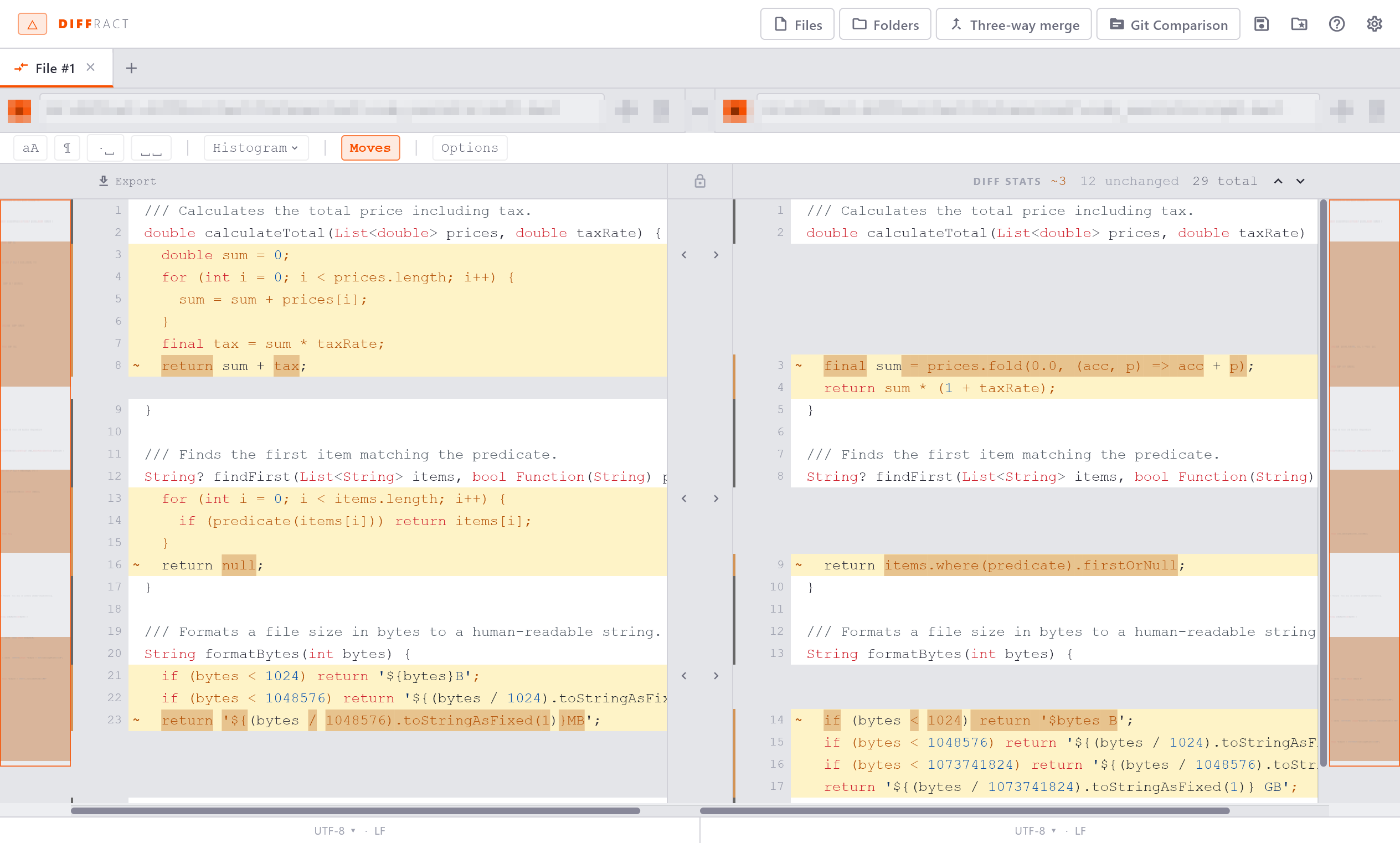
Word-level highlighting
Within a changed line, the specific words or tokens that differ are highlighted with a darker amber border and text. This makes it straightforward to spot a single renamed variable or a changed number inside a long line without reading the entire line.
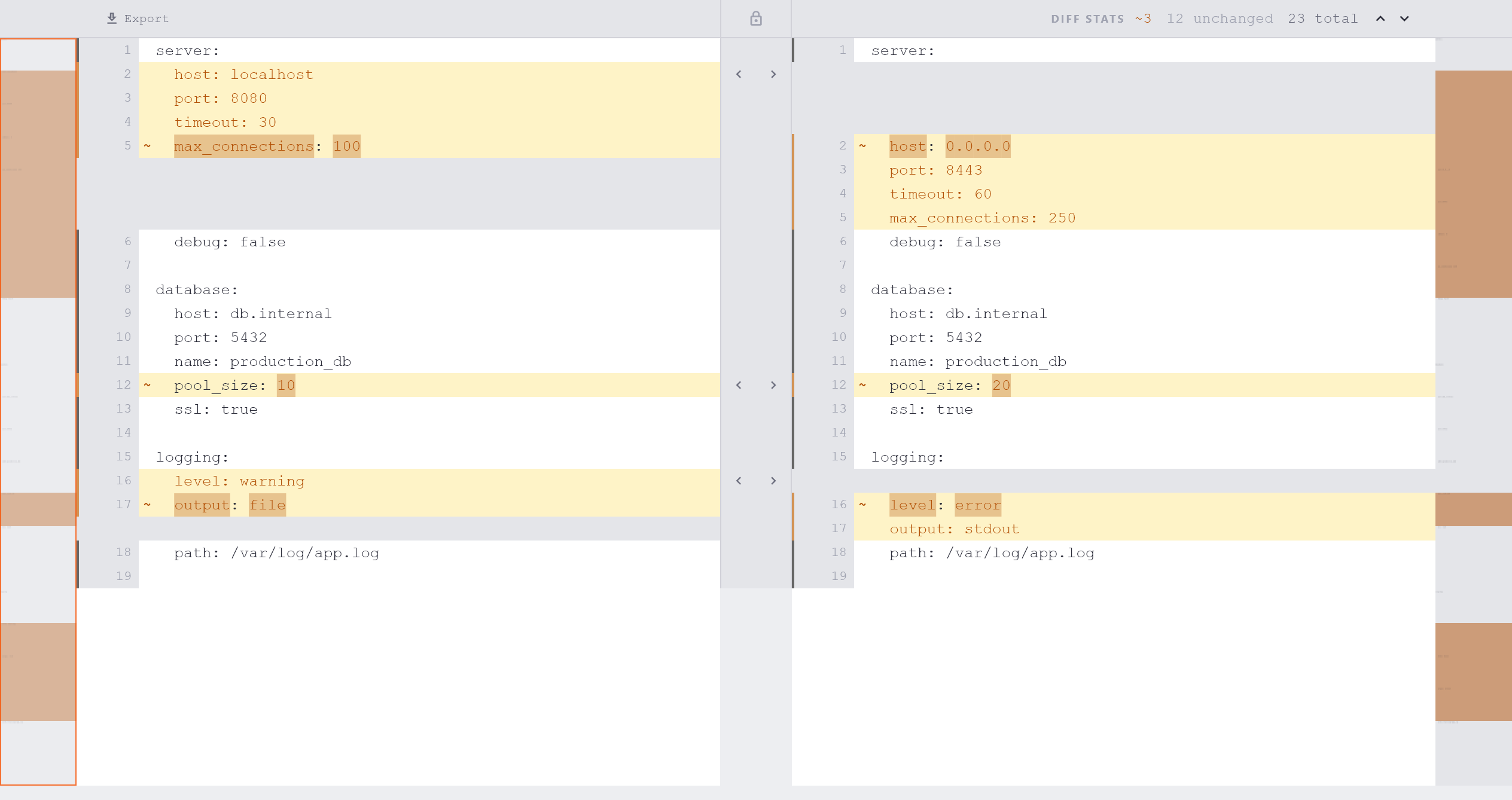
5. Scroll the comparison
The two panels scroll together. Moving the scrollbar in either panel moves both. This keeps the corresponding lines aligned at all times.
To jump between changes, use F7 (next change) and Shift+F7 (previous change).